ИИ-инструмент · редактирование
AI-инпейтинг — редактируйте любую область по промпту
Закрасьте область, напишите, что изменить. GPT Image 2 отредактирует только эту зону.
Полностью точное редактирование по промпту. Выделите область маской, опишите изменения, и GPT Image 2 модифицирует только эту зону, оставляя остальную часть изображения идеальной.
Бесплатно · Без регистрации · Ваше изображение не сохраняется
Почему GPT Image 2 для AI-инструмент для инпейтинга
Хирургическая точность
Меняйте только то, что выделили — остальное изображение остается нетронутым.
На базе промптов
Описывайте любые добавления или изменения естественным языком.
Многократные итерации
Повторяйте изменения в той же области, пока не добьетесь идеала.
Профессиональный уровень
Альтернатива генеративной заливке в Photoshop — бесплатно и прямо в браузере.
Как использовать AI-инструмент для инпейтинга
Загрузите изображение.
Закрасьте маской область редактирования.
Опишите, что должно появиться.
Сгенерируйте.
Кто использует AI-инструмент для инпейтинга
Дизайн
Замена специфических элементов в макетах.
E-commerce
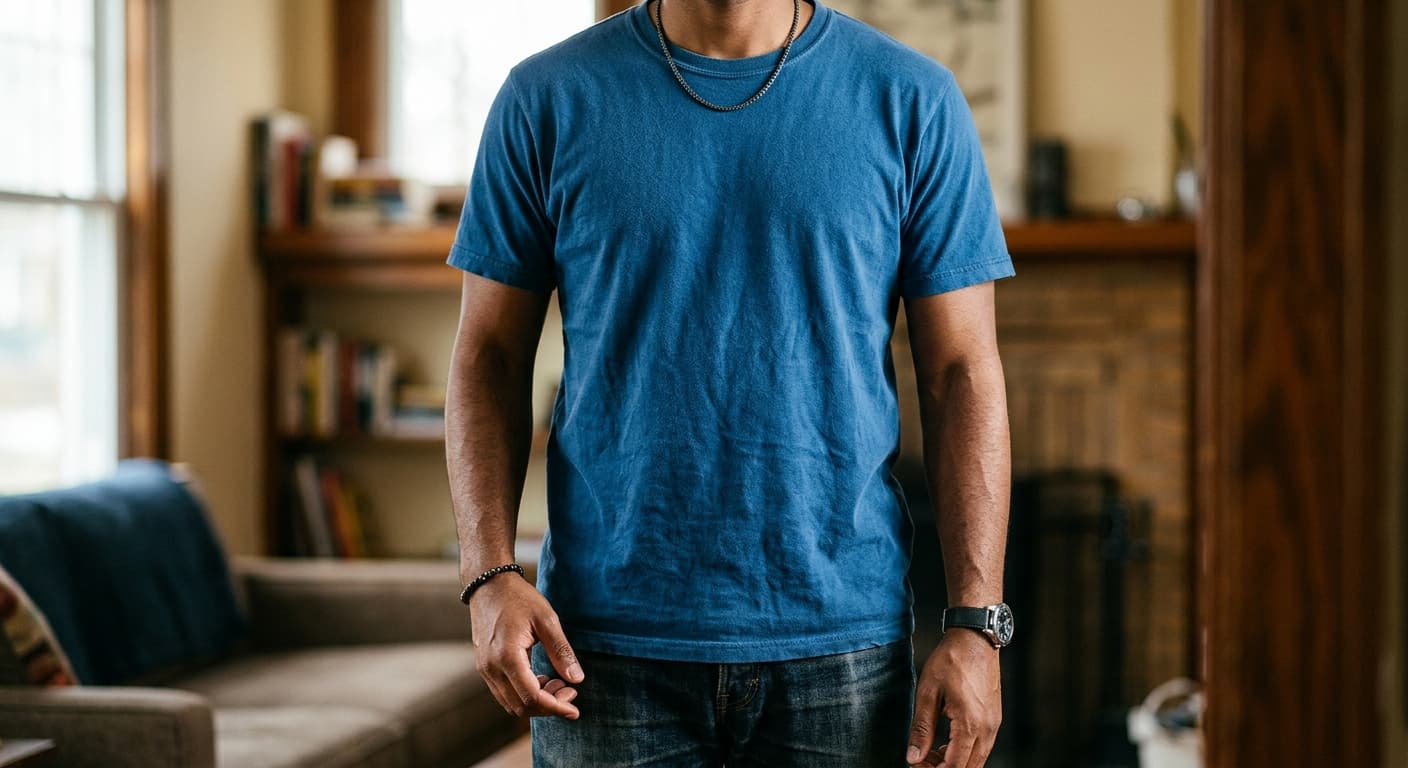
Изменение цвета товара на существующем фото.
Недвижимость
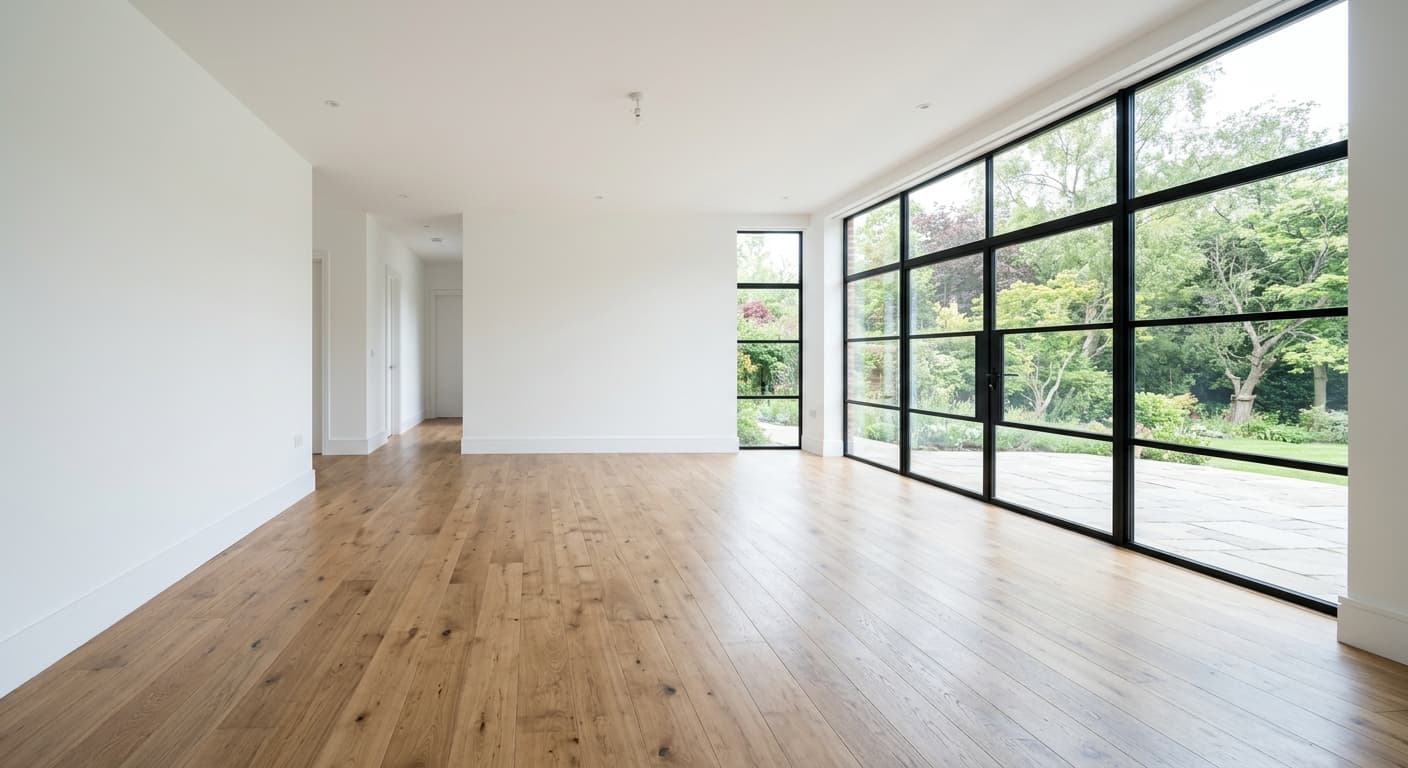
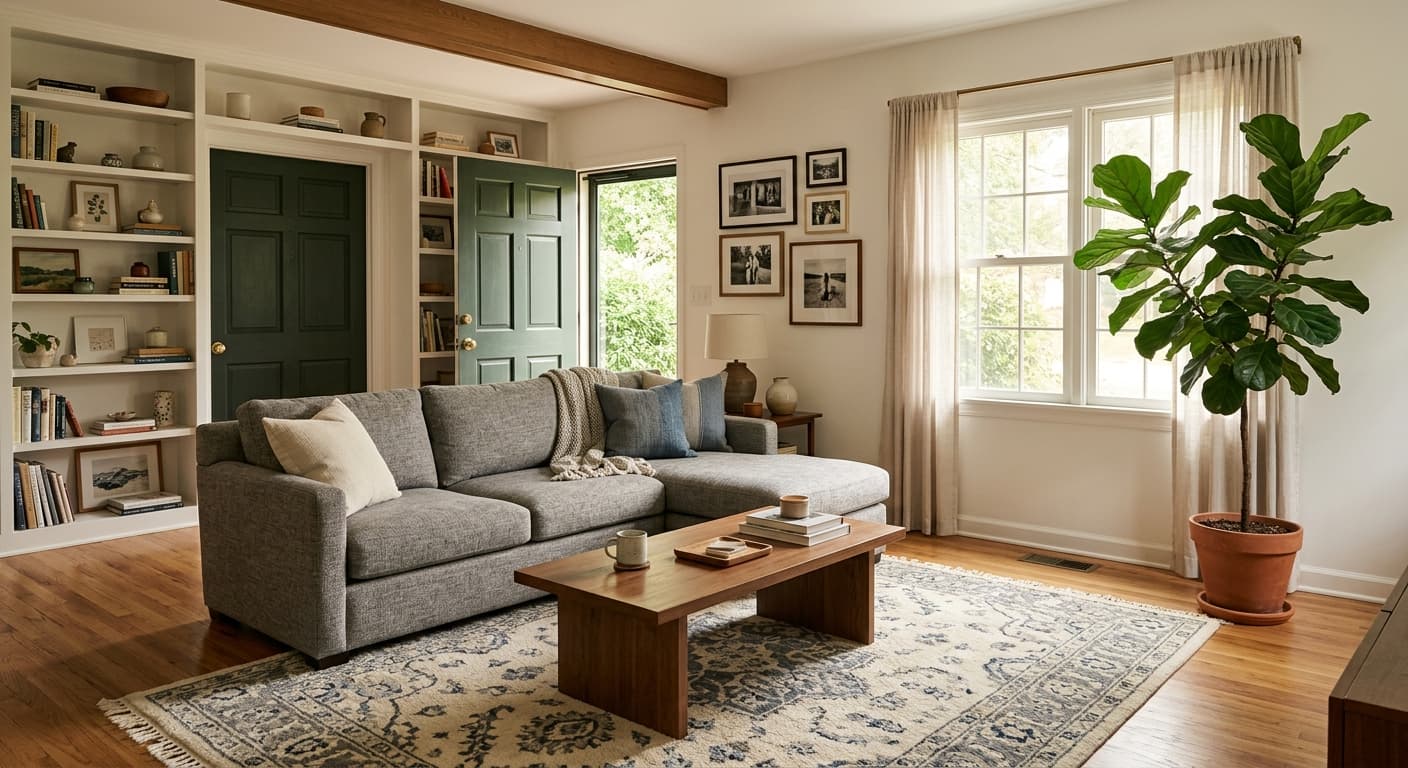
Хоум-стейджинг пустых комнат — добавление мебели через промпт.
Креатив
Добавление или замена объектов в композиции.
Примеры результатов
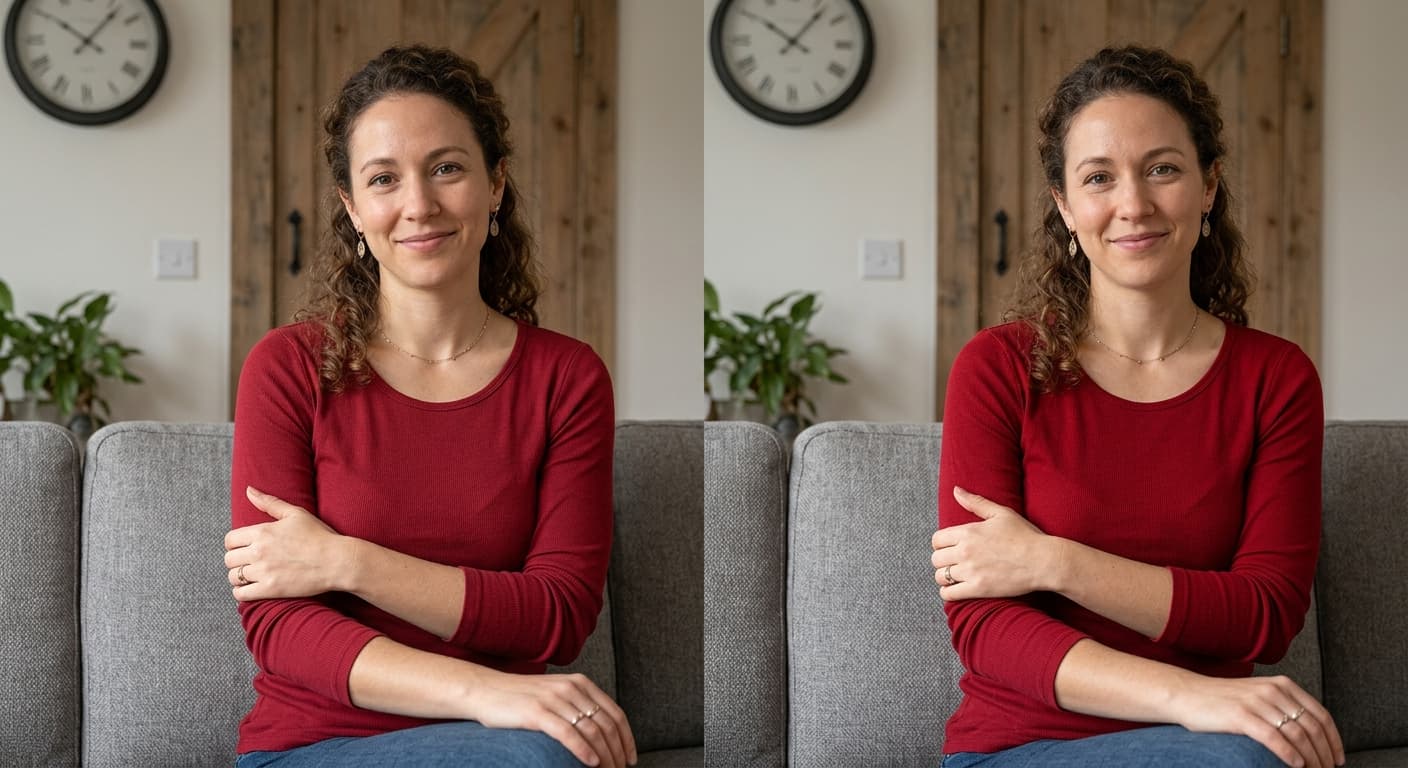
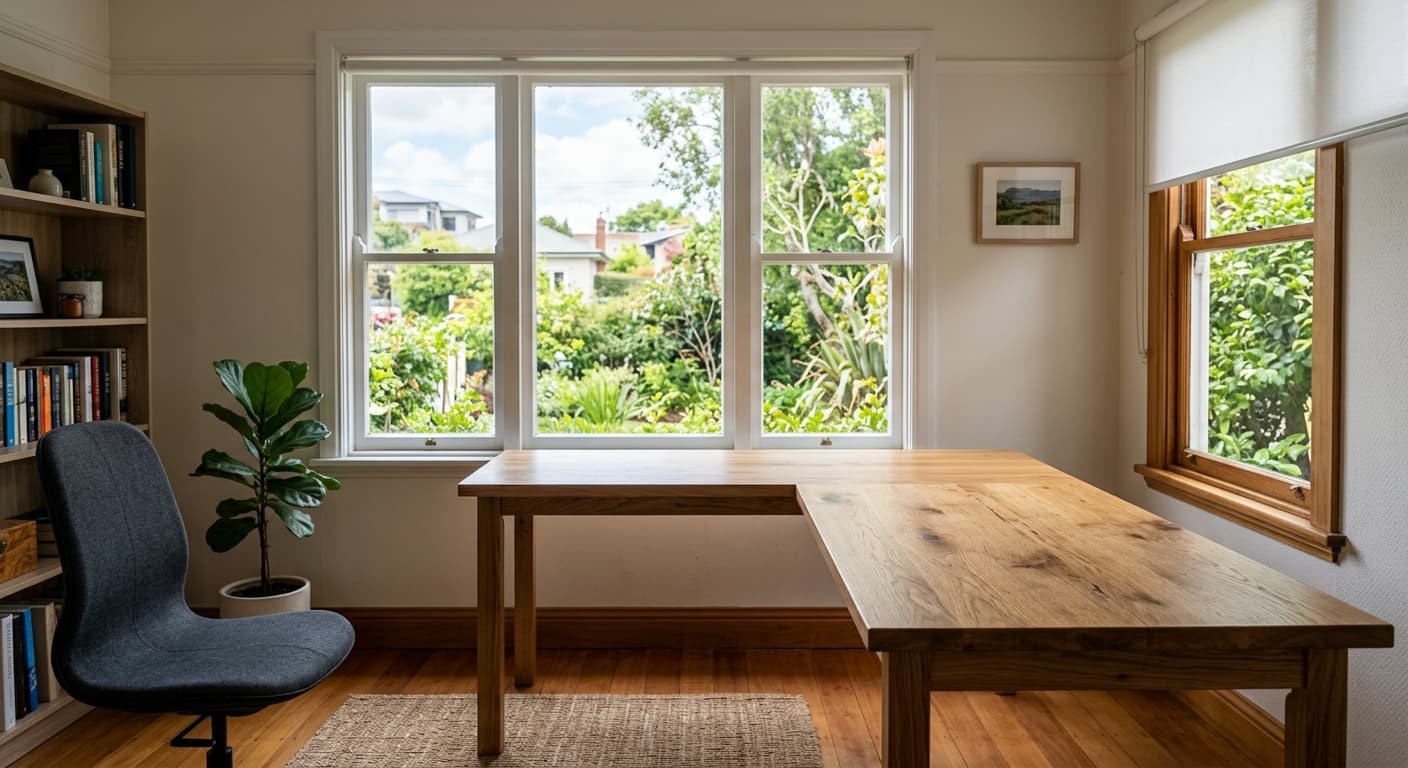
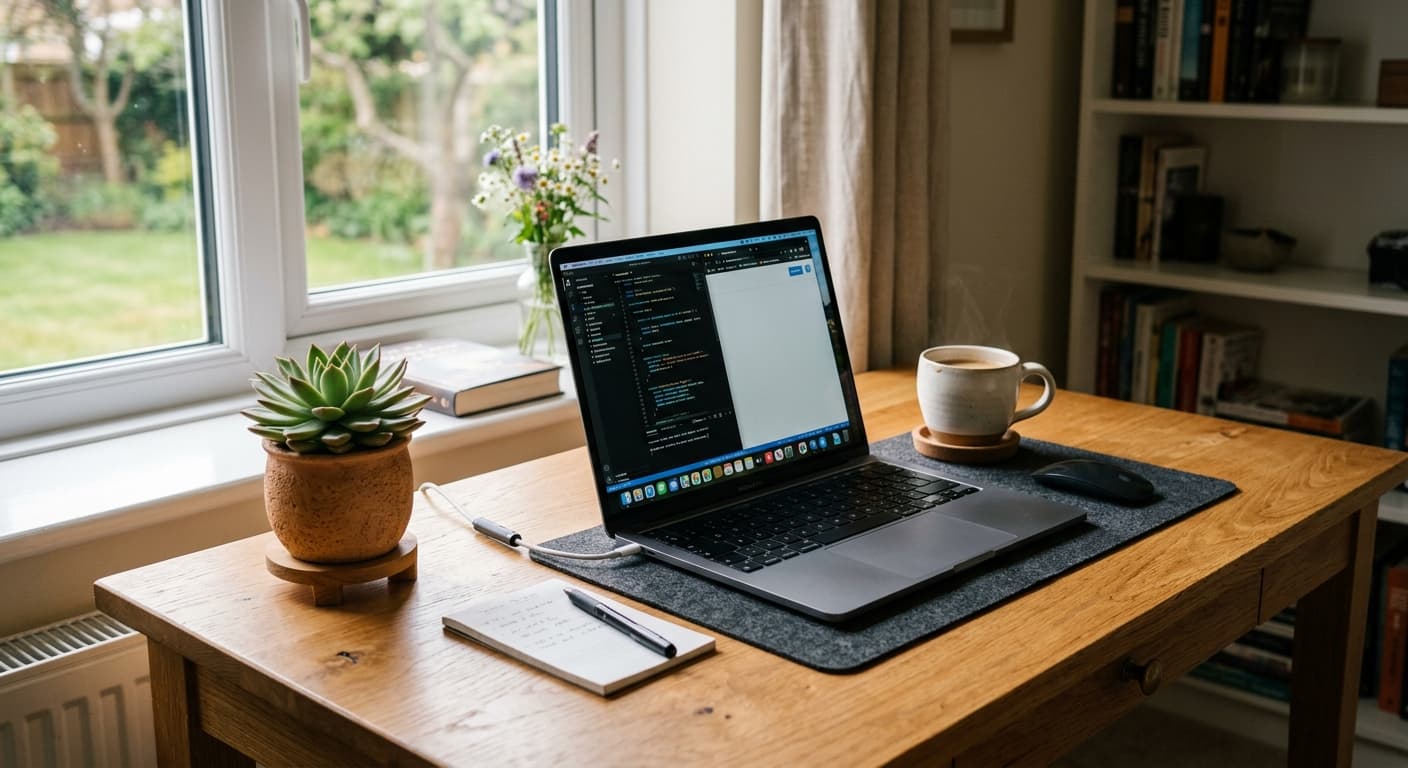
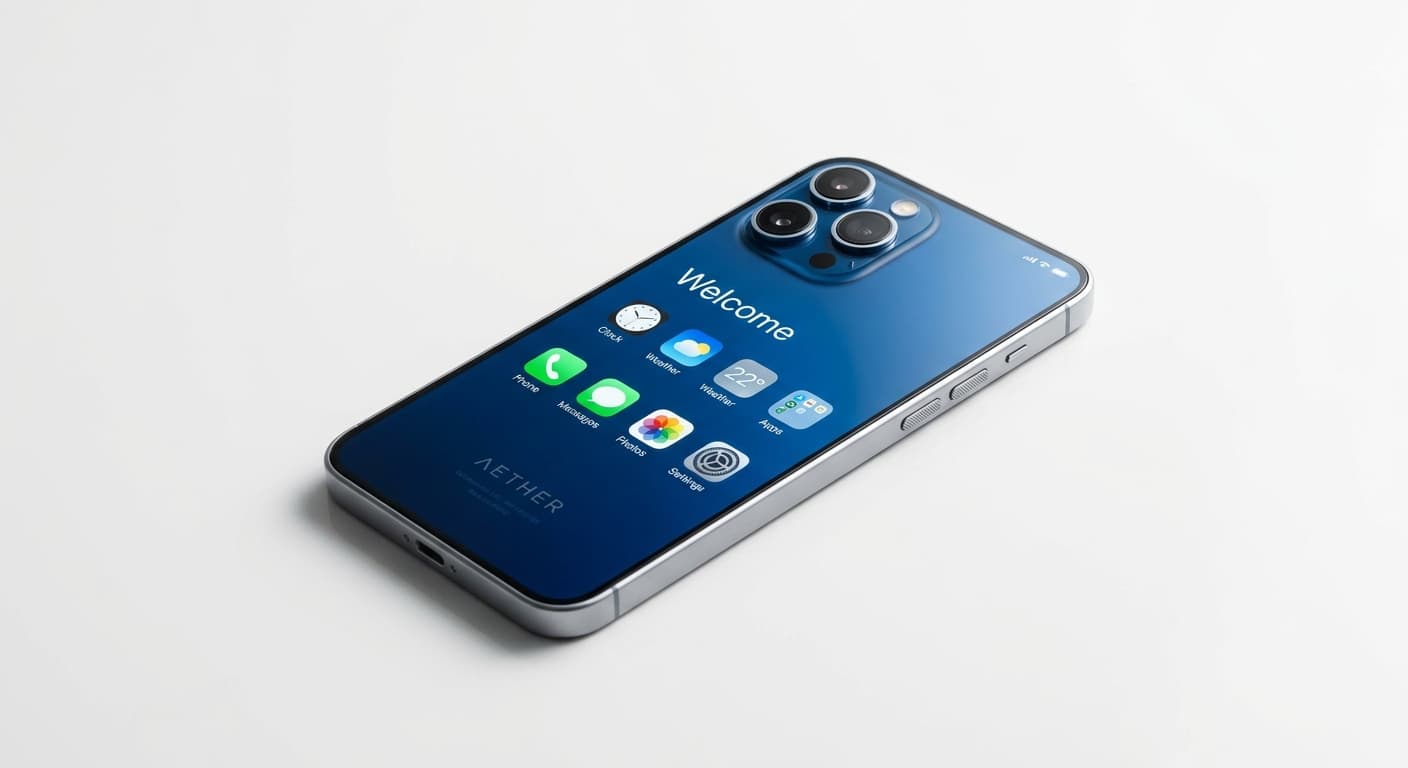
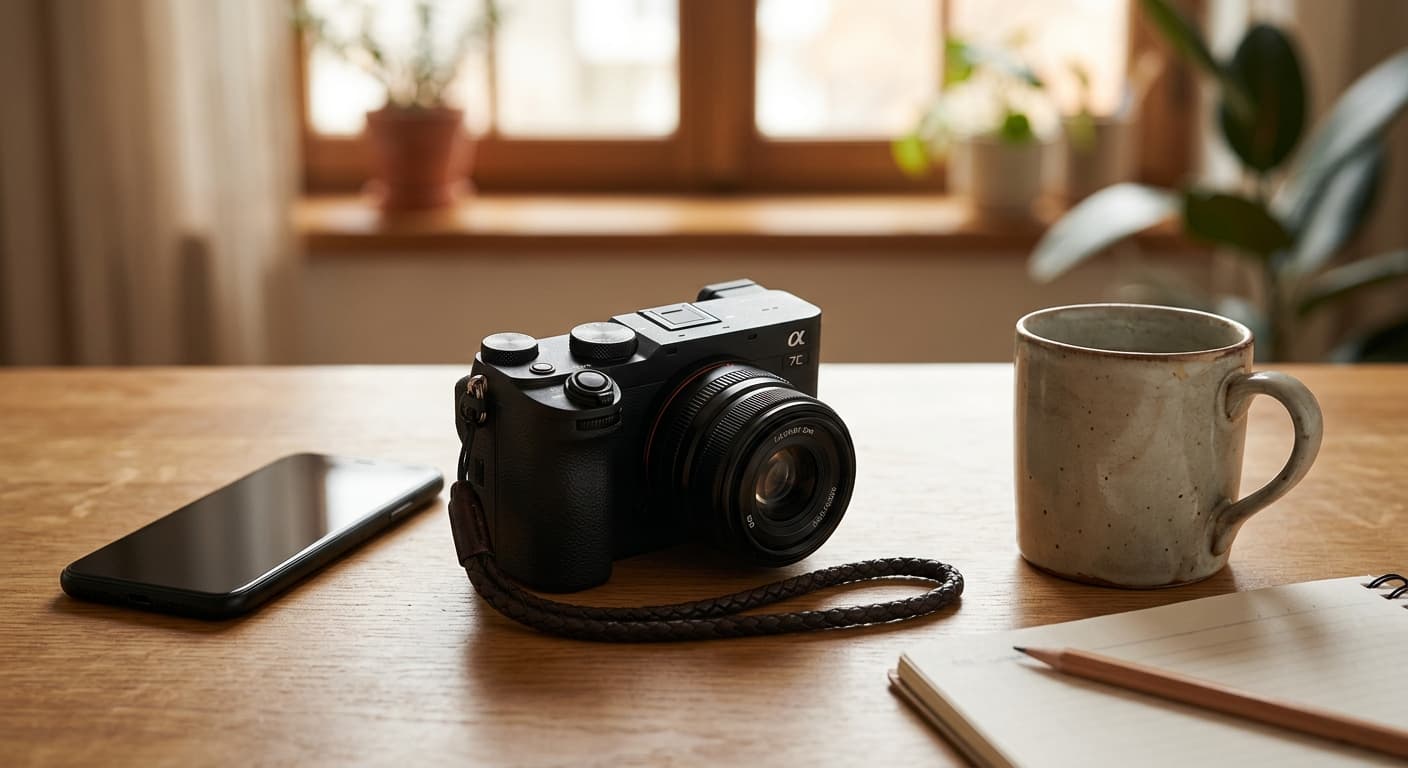
Перетаскивайте ползунок, чтобы сравнить до и после.
AI-инструмент для инпейтинга vs другие инструменты
| Сравнение с | Преимущество GPT Image 2 |
|---|---|
| Photoshop Generative Fill | Без подписки Adobe — только браузер. |
| Clipdrop Inpaint | Вывод в 4K, без водяных знаков. |
| Krea Inpaint | Более высокая точность промпта при сложных дополнениях. |
Похожие ИИ-инструменты
Если вам понравился AI-инструмент для инпейтинга, попробуйте эти.
AI-инструмент для удаления объектов
Удаляйте людей, объекты, текст или водяные знаки. AI автоматически восстанавливает фон.
Попробовать →AI Image Expander
Дополняйте изображение за пределами его границ. GPT Image 2 генерирует новые пиксели с бесшовным переходом.
Попробовать →AI-инструмент для замены фона
Опишите новый фон. GPT Image 2 идеально интегрирует ваш объект.
Попробовать →